Why it is written this way
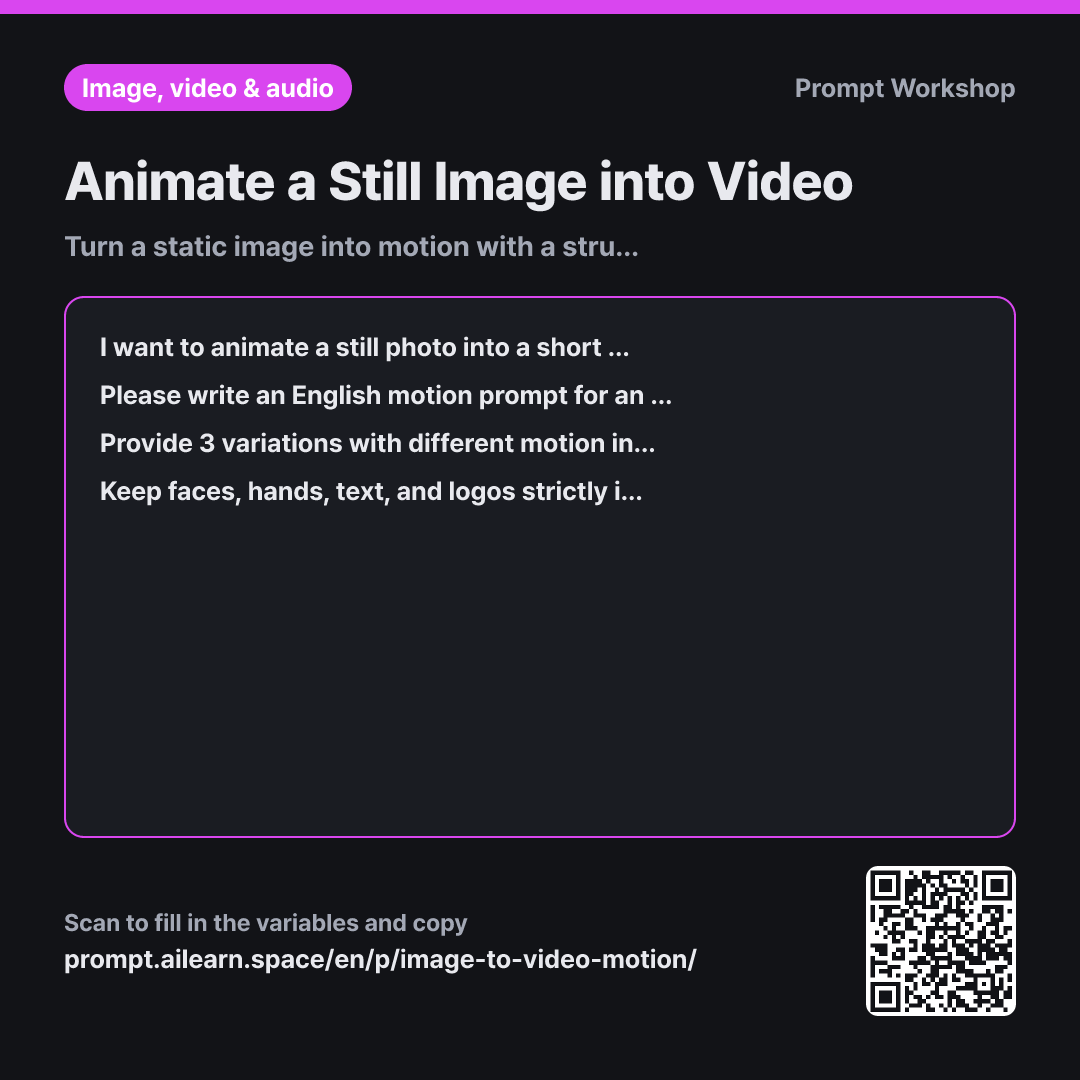
When you upload a photo to an image-to-video AI and simply prompt "make it move naturally," the model tends to warp everything on the screen. This causes faces to melt, text to smudge, and fingers to morph. Animating a still image is less about deciding what to move and more about explicitly locking down what must not move.
This is why the Task paragraph separates moving elements from static ones. By restricting movement to elements that can tolerate shape deformation—such as steam, curtains, water ripples, and ambient light—you get a stable, artifact-free 5-second video. The instruction to "never introduce new elements" serves the same purpose, as video models frequently hallucinate random objects or people into empty spaces.
In the Format section, requesting three intensity levels saves time when fine-tuning. Starting with a subtle prompt and scaling up is much faster than rewriting prompts from scratch. The troubleshooting tips clarify exactly which keywords to adjust if artifacts appear.
Finally, the Constraints prevent the most common failure points. Faces, hands, and typography are areas where the human eye instantly spots uncanny warping. If the photo includes people, ensure you have proper consent or use your own images.
Unfamiliar terms? See Aha AI: output-format, prompt
Compared with a bad example
Make this photo into a natural moving video
Without specifying what should move, the AI shakes the entire frame. The background distorts like moving water, and facial structures morph across frames. Regenerating with this prompt only yields different random glitches, making it impossible to diagnose what went wrong.
Variations
Subtle Animation for Product Listings
I want to create a short, polished video for an e-commerce product page using a still photo. The image contains: "{{photo description}}". Write an English prompt that keeps the product's shape, color, and labels 100% static across every frame, while adding subtle movement only to the light direction or minimal background ambient elements. Include only a single, very slow camera push-in.
Any distortion in product geometry creates misleading visuals. This keeps the product locked while animating only the lighting and atmosphere.
Troubleshooting & Refining an Unnatural Output
The video generated using the previous prompt resulted in an unnatural effect around the "{{desired motion}}" area. Without rewriting the entire prompt, isolate only the phrases related to that specific motion and refine them in two directions: one that reduces motion intensity, and one that narrows down the animated area. Include a one-line summary for each variation explaining what was changed.
Unnatural AI video output usually stems from excessive motion speed or an overly broad animation area. This refines one parameter at a time.
Model notes
Upload your photo to the image-to-video tool first, then paste the generated English motion prompt into the prompt box.
Image-to-video tools vary in their interface. Some take detailed motion instructions in the text prompt, while others use separate motion sliders or numerical weight controls. If your tool uses a slider, pick one of the three prompt variations and adjust the motion intensity directly in the tool settings.
Related prompts
Last updated 2026-09-02 · Found a mistake? Let us know