Why it is written this way
When asking AI for spreadsheet help, responses often mistakenly mix in Excel-specific functions and syntax. While many function names overlap, array behavior and specialized tools like QUERY work completely differently in Google Sheets. Copy-pasting the wrong syntax leads to frustrating #NAME? or #ERROR! messages.
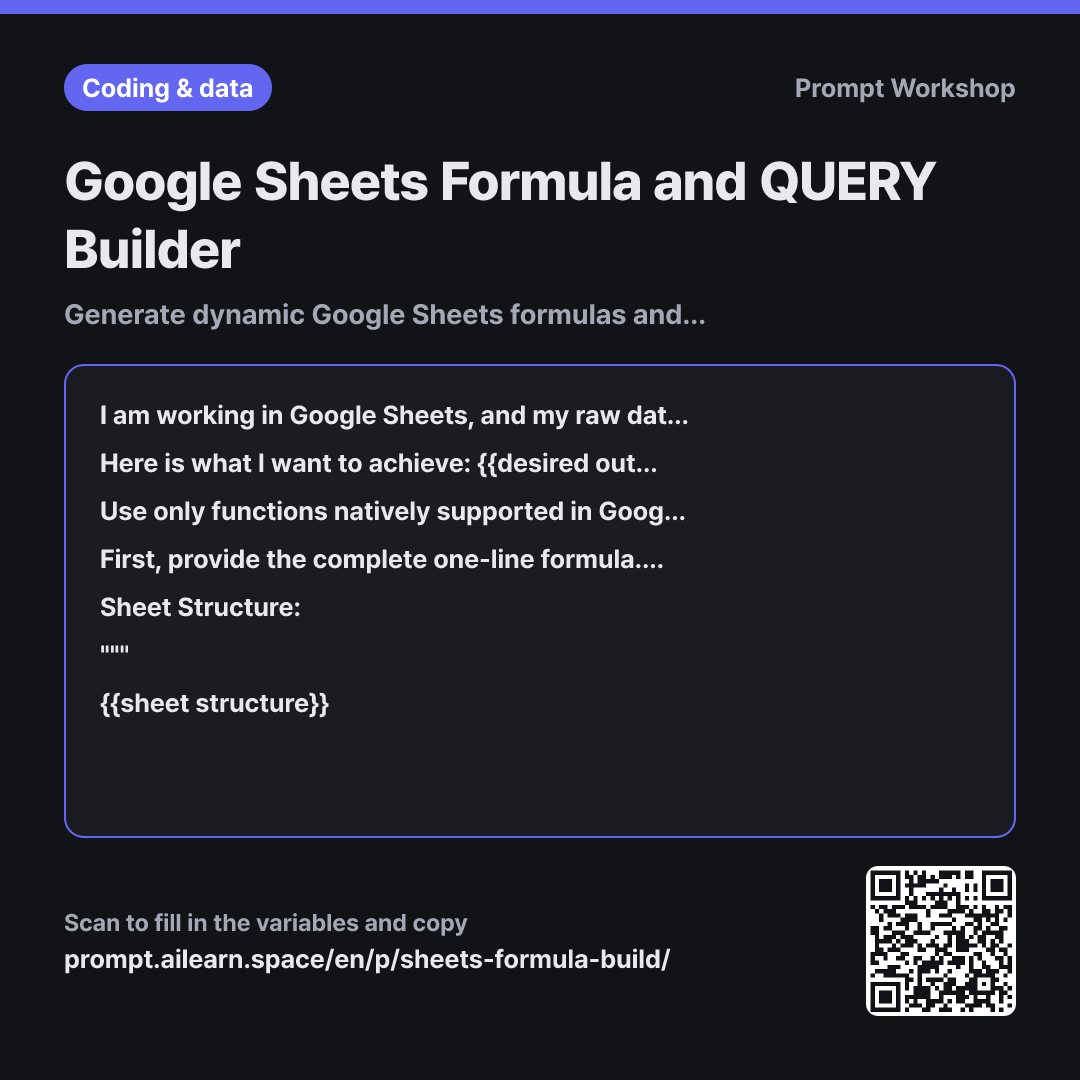
Setting the Context in the first paragraph establishes both the exact platform and data location. Mentioning sheet names and ranges upfront is crucial because Google Sheets formulas frequently pull across tabs. If a tab name contains spaces, omitting single quotes causes syntax parsing errors, while specifying the starting row (e.g., A2) prevents headers from breaking aggregations.
The Task section explicitly asks for a single-cell formula placed on another sheet without helper columns. Without this constraint, models often suggest dragging helper formulas down thousands of rows. Specifying this forces the AI toward modern dynamic array solutions like QUERY, FILTER, or SORT.
The Format requirement breaks down QUERY clauses because its SQL-like language can be cryptic to modify later. Specifying the target cell and expected output expansion prevents the dreaded #REF! error, which occurs in Google Sheets if existing data blocks the spilled array path.
Unfamiliar terms? See Aha AI: prompt, output-format
Compared with a bad example
Give me a Google Sheets formula to sum totals by client.
This prompt will likely return a generic SUMIF formula that does not include your sheet name or ranges. It also omits how to generate a unique list of clients or sort the results, forcing you to manually build helper columns and assemble the table yourself.
Variations
When data rows keep expanding dynamically
Rows are continuously added to the "{{sheet name}}" sheet. Based on the structure below, write a formula that delivers "{{desired outcome}}" and automatically incorporates new rows as they arrive. Please explain how you handled open ranges without accidentally including header text or blank rows in calculations.
""" {{sheet structure}} """
Using open-ended ranges (e.g., A2:E) avoids updating cell ranges each month. Always verify how empty rows and headers are filtered out.
When using dropdowns or cell inputs as filter conditions
Using the "{{sheet name}}" sheet structure below, create a formula for "{{desired outcome}}" where the date range and client name can be dynamically selected via dedicated input cells. First specify which cells should serve as input boxes, and ensure the formula returns all records if an input cell is left blank.
""" {{sheet structure}} """
Ideal for dashboards used by non-technical teammates. Requesting blank-input handling prevents errors when search fields are cleared.
Model notes
Formulas that expand across multiple rows need empty cells underneath. If you see a #REF! error, check if existing text or data is blocking the spill range.
Related prompts
Last updated 2026-09-02 · Found a mistake? Let us know