Why it is written this way
When asking ChatGPT for Google Apps Script, it generates code easily enough. The real barrier comes immediately after. You paste it into the editor, click Run, and get blocked by permission screens with alarming warning dialogues. Furthermore, you cannot know simply from looking at code that automated scheduling requires configuring separate triggers.
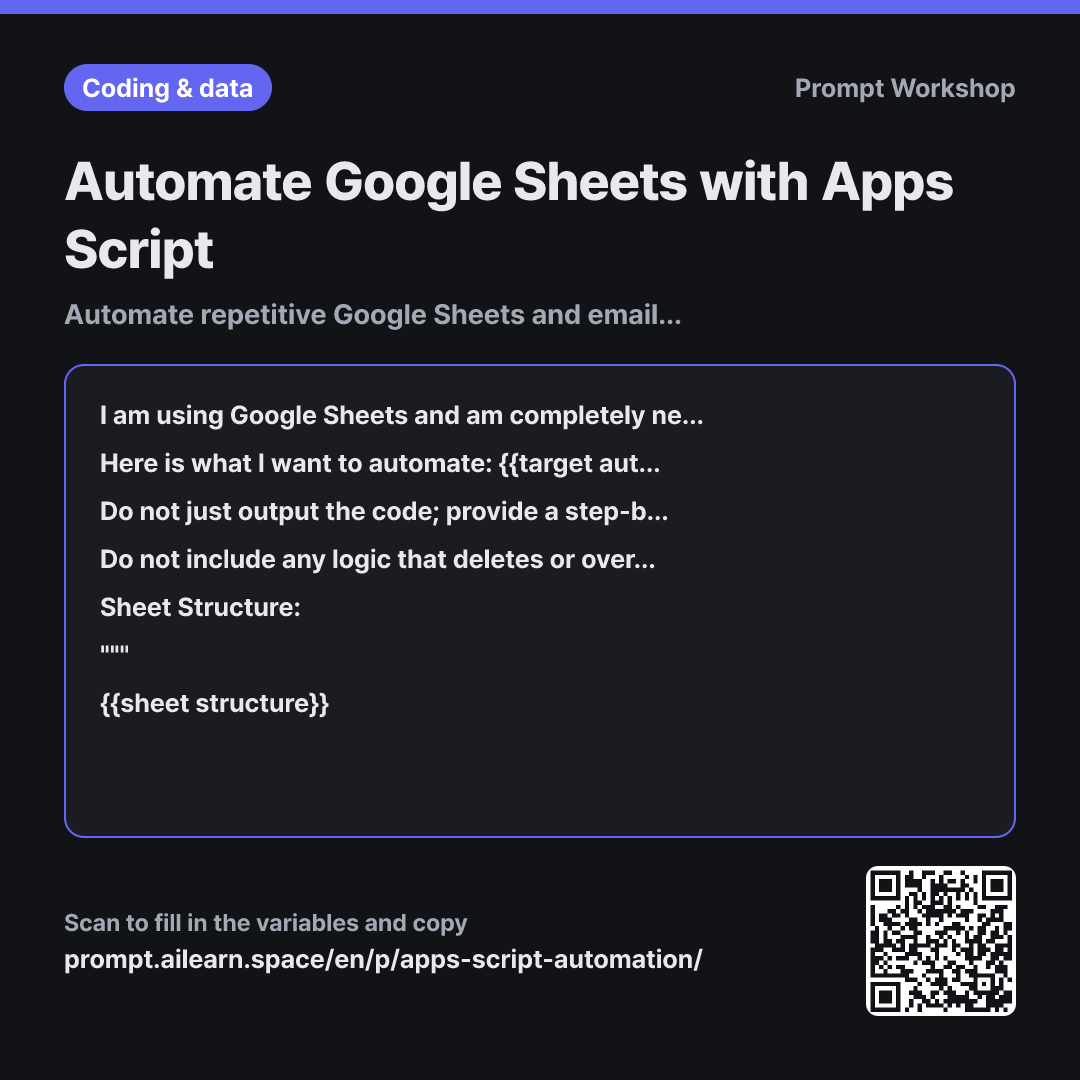
Context establishes three critical baselines upfront: the tool (Google Sheets), the fact that you are a beginner, and the execution cycle. Mentioning that you are new prompts clearer operational instructions, and specifying the schedule helps the AI structure clean, trigger-ready functions (single parameterless entry points). Providing the exact sheet structure prevents the model from hallucinating sheet names or column ranges, ensuring existing data is not accidentally overwritten.
Task keeps the objective narrow and explicit. Requesting multiple complex workflows at once bloats the script and makes troubleshooting errors difficult. If mixing operations like data aggregation and email delivery, it is far faster to test data processing first and attach email triggers subsequently.
Constraints protect your data and prevent accidental spam. Without explicit safeguards against overwriting, scripts might clear entire tabs, or send live test emails to real clients on the first trial run. Locking recipient fields to test addresses prevents communication mishaps. Mentioning execution time limits accounts for Apps Script's strict runtime quotas on larger datasets.
Unfamiliar terms? See Aha AI: prompt, hallucination
Compared with a bad example
Write an Apps Script to automatically send an email from Google Sheets every Monday.
While this generates code, it relies on hallucinated sheet names and column layouts that will not run out of the box. It omits permission clearance steps and trigger instructions, leaving beginners stuck. Worse, if recipient emails are hardcoded, a test run could immediately blast incomplete drafts to an entire organization with no way to recall them.
Variations
Troubleshooting Script Execution Errors
I ran a Google Apps Script designed to perform "{{target automation work}}" on the sheet below, but it returned an error. Please guide me through step-by-step troubleshooting: where to find error logs, how to inspect the Executions dashboard, a reference table of common script errors and their causes, and the updated code annotated with `Logger.log()` statements to pinpoint where execution fails.
""" {{sheet structure}} """
Most initial roadblocks stem from permissions and execution environments rather than syntax flaws. Incorporating explicit log points helps you diagnose and isolate future issues independently.
Triggering on New Form Responses
Google Forms responses are continuously logged into the sheet below. Whenever a new response arrives, automatically execute "{{target automation work}}". Ensure it only processes the newly submitted row, and include a mechanism (such as setting a status flag in a dedicated column) to prevent duplicate processing if re-triggered.
""" {{sheet structure}} """
Use this variant when transitioning from time-driven schedules to event-driven triggers. Without status tracking flags, subsequent runs may accidentally re-process prior entries and trigger duplicate emails.
Model notes
Google Apps Script requires one-time permission approval on the first execution. Because authorization screens differ between personal Google accounts and Google Workspace organization accounts, describe the exact screen you see back to the AI if it does not match the generated instructions.
Related prompts
Last updated 2026-09-02 · Found a mistake? Let us know