Why it is written this way
When asking an AI to edit an image, simply typing "change only this part" often fails. Without explicit boundaries, generative models do not know what counts as background versus foreground, and end up regenerating the entire scene from scratch—destroying the original lighting, framing, and mood.
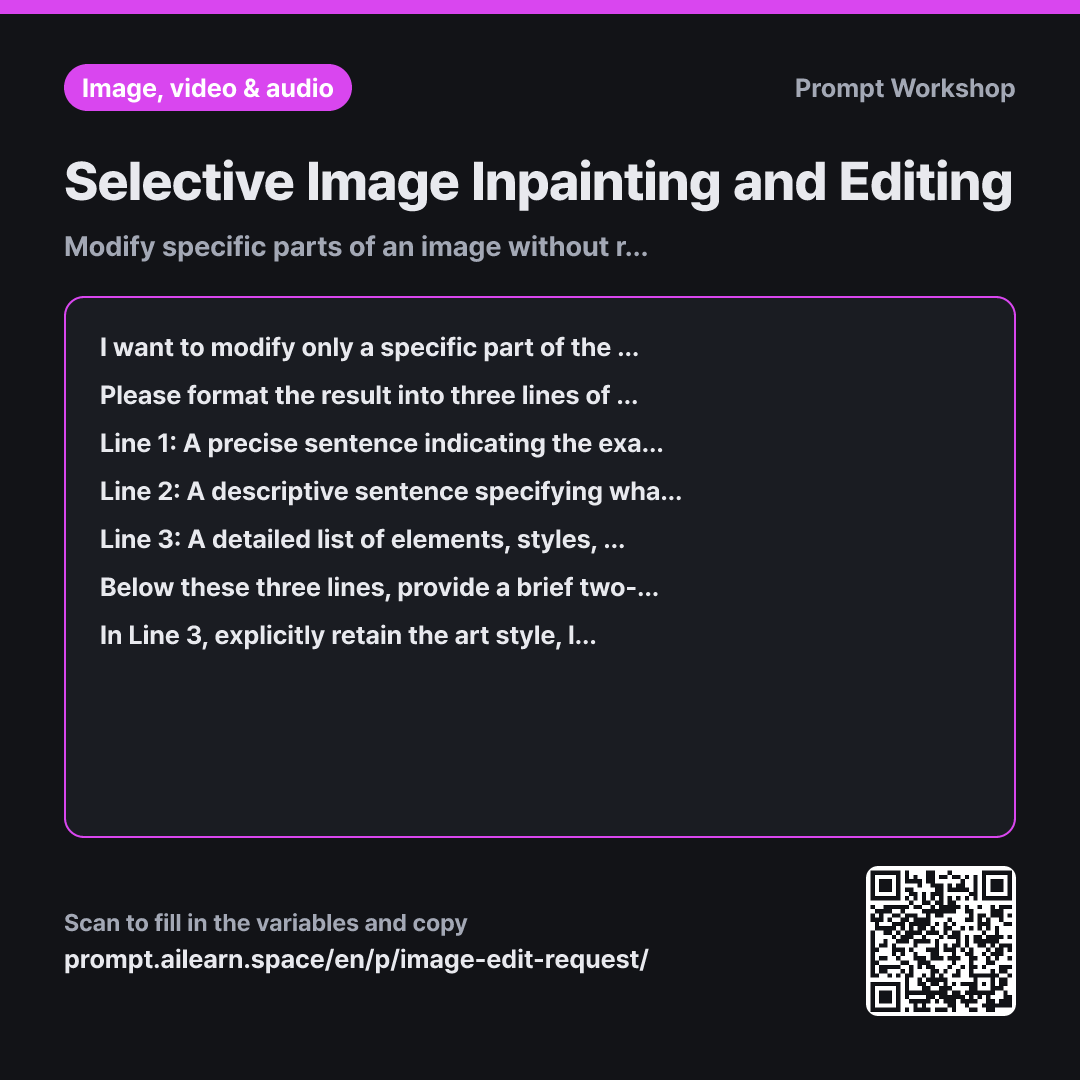
The Task section establishes strict operational boundaries. Separating the target area from the desired change clarifies that this is an inpainting task, not a full redraw. The structured three-line format ensures clarity, with the third line being the most vital: without explicit negative constraints and preservation instructions, no tool will keep the surrounding scene intact.
The Constraints section specifies what must be locked down: style, lighting, composition, and color palette. These four elements degrade most frequently during inpainting. Enforcing a single-change-per-step rule prevents compounding errors, allowing you to isolate and adjust individual edits systematically.
Finally, enclosing the original description in triple quotation marks (""") prevents the AI from interpreting descriptive words (like "bright" or "plant") as new direct commands.
Unfamiliar terms? See Aha AI: prompt, output-format
Compared with a bad example
Change only the plant in the back of this image to some books.
A simple request like this typically outputs an entirely new image with altered desk positioning, different lighting angles, and subtle changes to the main subject. Once the original composition is lost, it is nearly impossible to recreate the exact initial aesthetic.
Variations
When changing only the background
I want to replace only the background of the uploaded image while keeping the main subject completely intact. The new background should be: {{desired_change}}. The main subject's position, scale, angle, and cast shadow direction must be strictly preserved. Provide a one-line English prompt describing the background replacement, followed by a second English line detailing all elements to keep unchanged. If the lighting angle of the new background contradicts the existing subject's shadows, point out the discrepancy first and propose an aligned lighting setup.
Background swaps look unnatural if the light source conflicts with existing shadows. This variant explicitly locks shadow directions and asks the model to detect lighting mismatches.
When iterative edits drifted too far from the original
After multiple rounds of edits, the image has drifted significantly from the original version. The original image was: {{original_description}}. The only change I actually want to retain right now is: {{desired_change}}. Please write an English prompt that resets back to the original base image and applies only this single intended modification. Summarize briefly which unintended changes crept in during previous revisions so they can be avoided.
Repeated inpainting accumulates unintended artifacts. This resets the canvas to the baseline and cleanly re-applies only the target change.
Model notes
Attach the reference image first before sending the prompt. For tools with brush-based inpainting, use the first line to guide your selection mask and enter the second and third lines into the fill prompt box.
Different tools handle inpainting differently: some use a brush/mask interface (e.g., Midjourney Vary Region, Photoshop Generative Fill), while others use text-guided selective editing. For brush-based tools, use Line 1 only to determine your selection mask, and paste Lines 2 and 3 into the fill prompt field.
Related prompts
Last updated 2026-09-02 · Found a mistake? Let us know