Why it is written this way
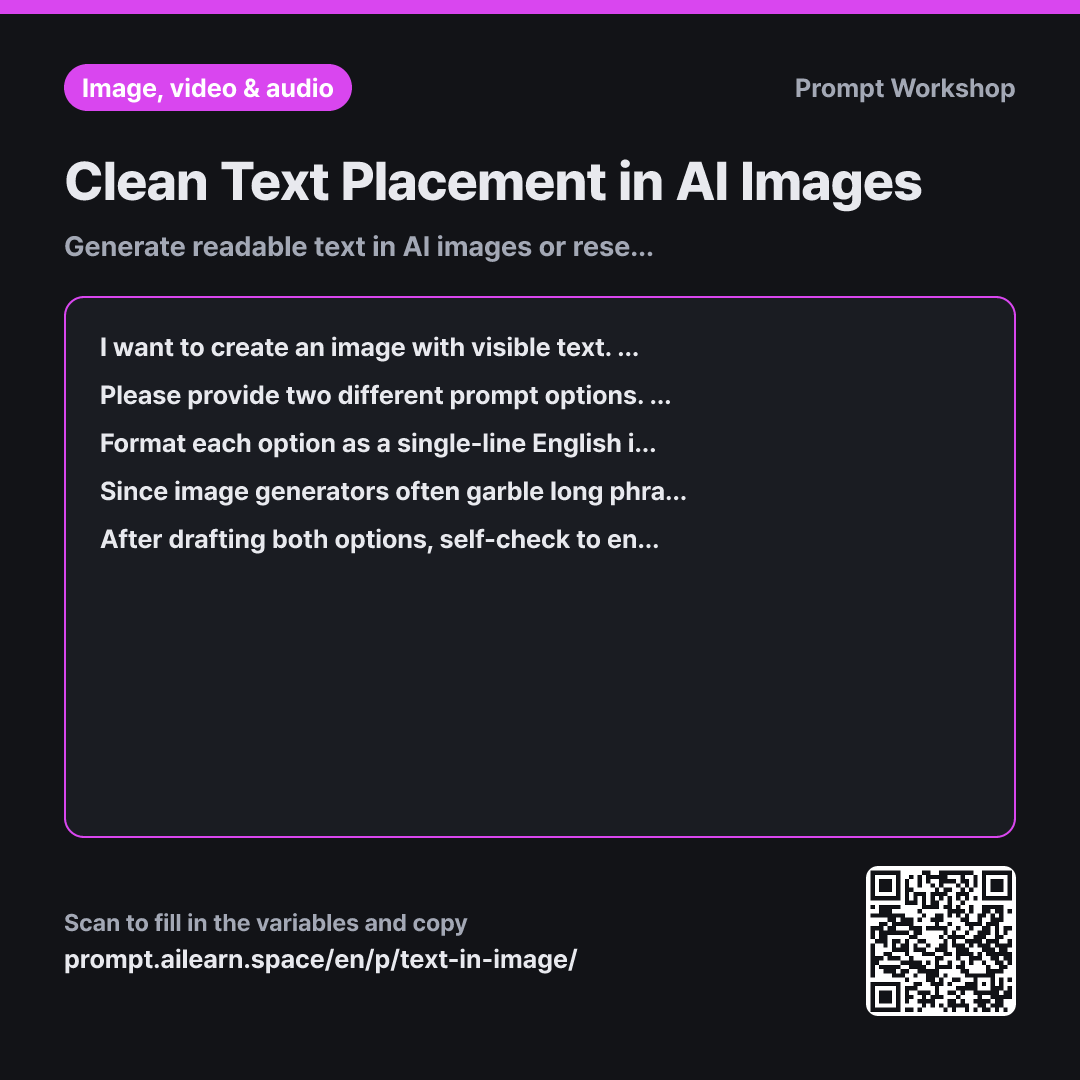
AI image generators struggle with rendering text because they do not understand letters as typography—they see them as visual patterns. Complex scripts or lengthy phrases often end up as distorted, illegible scribbles.
Splitting the request into two paths in the Task paragraph is the core of this prompt. Rendering text natively versus reserving blank negative space serve entirely different workflows. Instead of discovering garbled text after the generation, having both options ready lets you choose the best route immediately.
The Format paragraph ensures essential evaluation metrics are provided: the exact rendered wording for Option 1 and the layout of the blank area for Option 2. These two details determine whether the asset is usable.
The Constraints paragraph limits failure points. The three-word restriction minimizes rendering artifacts, while requiring notes on meaning shifts keeps your messaging accurate. Finally, the Review step ensures the model validates word counts and spacing before delivering the output.
Unfamiliar terms? See Aha AI: output-format, prompt
Compared with a bad example
Create a cozy cafe poster image with "Fall Specials" written in large bold letters across the front.
This prompt often produces mangled, pseudo-lettering right across the center of the image. Even if the background looks great, fixing the garbled text requires complex editing because no clean negative space was reserved for manual text overlay.
Variations
When creating a consistent series template
I want to create a series of images where only the text changes across templates. The current phrase is "{{Text to Include}}" and the intended use is: {{Image Purpose}}. Write an English image prompt that consistently reserves empty text space in the exact same position and size. Separate the prompt into two distinct parts: the visual scene description and the reserved negative space parameter, so I can reuse the layout for future variations.
For a cohesive series, the text placement must remain consistent across batches. Isolating the negative space instruction ensures you can reuse the same layout formula.
When you need a blank background sign or billboard
I need an image with a visible sign or billboard in the background for: {{Image Purpose}}. Write an English image prompt that renders the sign completely blank or with subtle, unreadable textures rather than legible letters. Frame the sign from a nearly front-facing angle to make it easy to overlay text later using an editing tool.
Text on background signs almost always distorts. Requesting a blank surface provides a clean canvas to add crisp typography later.
Model notes
Text rendering capabilities vary significantly across tools. If the model garbles short phrases after two or three attempts, generate the image using Option 2 (empty space) and overlay the text in a graphic editor like Canva or Photoshop.
Text rendering performance varies significantly across AI image models (e.g., Midjourney, DALL-E 3, Ideogram, Flux). Generate both options initially to test what your specific tool handles best, then stick to that preferred workflow for future prompts.
Related prompts
Last updated 2026-09-02 · Found a mistake? Let us know